
はじめに
robotframeworkでciscoへ接続する際にログ表示が長いものは–more–と表示され全て表示されずログの取得が上手く行きませんでした(read untilなどでキーワードを指定する場合は、キーワードが表示されずにタイムアウトしてしまいます)
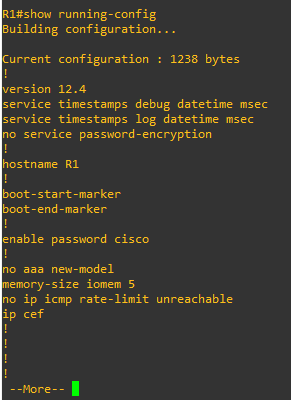
手動でコマンドの入力を行う場合必須ではありませんが、自動化などでログを残す場合、こうしたコマンドの入力を追加する必要があったのでメモ。
moreを表示しない方法
Ciscoのデバイスで「–more」を表示しないようにするには「Write terminal length 0」を入力する必要があります。
robotframeworkでは「write」などでそのままコマンドを入力すれば良いです。
入力あるなしで結果が違います。
まずterminal length 0を入れずにrobotframeworkを動かした場合です。
*** Settings ***
Library SSHLibrary

*** Keywords ***
ssh接続
    Open Connection ${target_ip}
    Login ${user_name} ${pass}
*** Test Cases ***
SSHでログインする
    ssh接続

enableコマンド
    Write enable
    Write ${pass}

show running-configコマンド実行
    Write show running-config
    ${output}= Read delay=3s
    Log To Console ${\n}${output}
terminal length 0がないとログが全部表示されません。
自動取得としては結果が見れないのは問題です。
自動取得としては結果が見れないのは問題です。
==============================================================================
Test1
==============================================================================
SSHでログインする                                                    | PASS |
------------------------------------------------------------------------------
enableコマンド                                                        | PASS |
------------------------------------------------------------------------------
show running-configコマンド実行                                      ..
Building configuration...


Current configuration : 1576 bytes
!
version 12.4
service timestamps debug datetime msec
service timestamps log datetime msec
no service password-encryption
!
hostname R1
!
boot-start-marker
boot-end-marker
!
enable secret 5 $1$HApz$HEV3pCvrS.hpaaRqq/nv51
enable password cisco
!
no aaa new-model
memory-size iomem 5
no ip icmp rate-limit unreachable
ip cef
!
!
!
--More--
show running-configコマンド実行                                      | PASS |
------------------------------------------------------------------------------
Test1                                                                | PASS |
3 tests, 3 passed, 0 failed
==============================================================================
terminal length 0を入れると、
*** Settings ***
Library SSHLibrary
*** Variables ***
${user_name} cisco
${pass} cisco
${target_ip} 192\.168\.56\.10

*** Keywords ***
ssh接続
Open Connection ${target_ip}
Login ${user_name} ${pass}
*** Test Cases ***
    SSHでログインする
    ssh接続

enableコマンド
    Write enable
    Write ${pass}

ログ表示でmoreを出さない
    Write terminal length 0

show running-configコマンド実行
    Write show running-config
    ${output}= Read delay=3s
    Log To Console ${\n}${output}
ログの出力結果が全て表示されるようになります。
==============================================================================
Test1
==============================================================================
SSHでログインする                                                    | PASS |
------------------------------------------------------------------------------
enableコマンド                                                        | PASS |
------------------------------------------------------------------------------
ログ表示でmoreを出さない                                              | PASS |
------------------------------------------------------------------------------
show running-configコマンド実行                                      ..
Building configuration...


Current configuration : 1576 bytes
!
version 12.4
service timestamps debug datetime msec
service timestamps log datetime msec
no service password-encryption
!
hostname R1
!
boot-start-marker
boot-end-marker
!
enable secret 5 $1$HApz$HEV3pCvrS.hpaaRqq/nv51
enable password cisco
!
no aaa new-model
memory-size iomem 5
no ip icmp rate-limit unreachable
ip cef
!
!
!
!
no ip domain lookup
ip domain name cisco.com
!
multilink bundle-name authenticated
!
・
・
(省略)
・
・
!
line con 0
exec-timeout 0 0
privilege level 15
logging synchronous
line aux 0
exec-timeout 0 0
privilege level 15
logging synchronous
line vty 0 4
login local
!
!
end


R1#
show running-configコマンド実行                                      | PASS |
------------------------------------------------------------------------------
Test1                                                                | PASS |
4 tests, 4 passed, 0 failed
==============================================================================
おわりに
今回はrobotframeworkでciscoデバイスのログを全て表示する方法でした。
知っていればなんてことは無いんですが、ネットワークに詳しくかつプログラムに詳しい人は少ないのですよね。
なので、僕みたく(ネットワークかプログラムの)どちらかでつまずく事があるのではないかと思います。
最近はネットワーク系でもpythonを始めプログラムが出来る方が望ましいので、知っていると便利だと思います(CiscoのCCNPにもPythonの項目が増えてきていますよね)
この記事がお役に立ったのならば嬉しいです。
最後までお読みいただきましてありがとうございました。